Figma for Product Managers: How to Use It Without Being a Designer
You don’t need to be a designer to use Figma. In fact, if you’re a product manager who has avoided Figma because you’re not technical enough or not design-trained, you’ve been missing one of the most useful tools in the modern PM workflow. This is a practical guide to Figma for product managers — no design background required.
Figma is where your designers live. It’s where wireframes turn into prototypes, where UI decisions get debated, where the gap between “what we said we’d build” and “what engineering is about to build” becomes visible before it’s too late. PMs who can navigate Figma, even at a basic level, are better at product discovery, better at writing requirements, and better at catching misalignment early. A PM who only ever sees designs as exported PNGs in Slack routinely misses launch-blocking edge cases that a five-minute look at the live file would have caught.
Why Product Managers Should Learn Figma
The simple reason: Figma is the primary communication tool between design and engineering, and product managers sit between both. If you can’t read and comment in Figma, you’re working off descriptions and screenshots rather than the actual design artifact. That creates gaps.
Here’s what changes when PMs are comfortable in Figma:
Faster feedback loops. Instead of scheduling a review meeting to discuss a design, you can leave specific comments directly on the frame and get a response the same day.
Better requirements. When you’ve spent time in the wireframe, you catch edge cases, empty states, and UX inconsistencies that don’t show up in a PRD. This reduces rework in engineering.
Stronger discovery work. PMs who can sketch rough concepts in Figma — even with basic shapes — can communicate ideas to designers more precisely than verbal descriptions.
Fewer surprises at launch. Most product quality issues happen because a design decision was misunderstood by engineering, or because the PM approved a design without realizing what it meant for the actual use case. Figma gives you visibility before it’s too late.
What You Don’t Need to Do in Figma
First, let’s be clear about what product managers don’t need to do in Figma:
- Create pixel-perfect UI designs
- Know how to use advanced design components or auto-layout
- Understand design systems at a technical level
- Produce production-ready mockups
Your job is not to design. Your job is to understand the design well enough to evaluate it, give feedback, and ensure it solves the right problem for users.
Part 1: Navigating Figma as a PM
The Basics
Figma is organized around files and pages. A file is the top-level container: your designer might have one file per product area, one per feature, or one per design system. Pages are tabs within a file, usually organized by flow, feature, or design phase.
When you open a design file, you’ll see frames, the individual screens or components. Click on a frame to select it. Use the scroll wheel to zoom in and out. Hold Space and drag to pan.
Don’t be afraid to click around. You can’t break anything by viewing and clicking.
Viewer vs. Editor Mode
Figma has two main modes for non-designers:
Viewer (free): You can view designs, leave comments, and inspect element properties (fonts, spacing, colors). This is all most PMs need.
Editor (paid seat): You can create and edit designs. Useful if you want to sketch wireframes or modify existing designs. Not required for basic PM use.
Start with Viewer access. Most Figma plans allow unlimited viewers for free.
Prototype Mode
One of the most useful features for PMs. Click the “Prototype” tab in the right panel to switch from seeing static designs to navigating a clickable prototype. This lets you experience the user flow the way a real user would: tapping through screens, seeing transitions, and understanding how the navigation works.
Always review a feature in Prototype mode before signing off on a design. Static screens don’t tell you how the flow feels.
Part 2: Giving Feedback in Figma
The single most valuable PM skill in Figma is leaving good comments. Here’s how to do it well.
How to Leave a Comment
Press C to enter comment mode (or click the comment icon in the toolbar). Click anywhere on the canvas to drop a pin. Type your comment. Tag teammates with @name. Press Enter to post.
Comments are visible to everyone with access to the file. This makes them a shared record of design decisions, much better than feedback scattered across Slack threads.
What Good PM Feedback Looks Like
Be specific, not directional. Your job as a PM is to identify problems, not prescribe design solutions. “Users may not know what this button does; the label ‘Submit’ doesn’t tell them what will happen next” is better than “change the button label to ‘Place Order.'” Let the designer solve the design problem. A PM naming the solution instead of the problem often gets back exactly what they asked for — and something worse than what the designer would have come up with on their own.
Ask the user a question. Frame feedback from the user’s perspective: “If a user arrives here from a notification email, would they understand where they are?” This keeps the feedback grounded and avoids opinion battles.
Flag missing states. What happens if the list is empty? What does the error state look like? What happens if the API call fails? PMs are well-positioned to catch these gaps because they understand the edge cases from user research and requirements.
Separate scope feedback from design feedback. “This feature wasn’t in the requirements” is a different conversation from “this interaction pattern is confusing.” Keep them separate so designers know which feedback requires a UX response and which requires a PM decision.
Part 3: Using Figma for Product Discovery
Product managers don’t just consume designs; they can use Figma actively in the product discovery process.
Low-Fidelity Wireframing for PMs
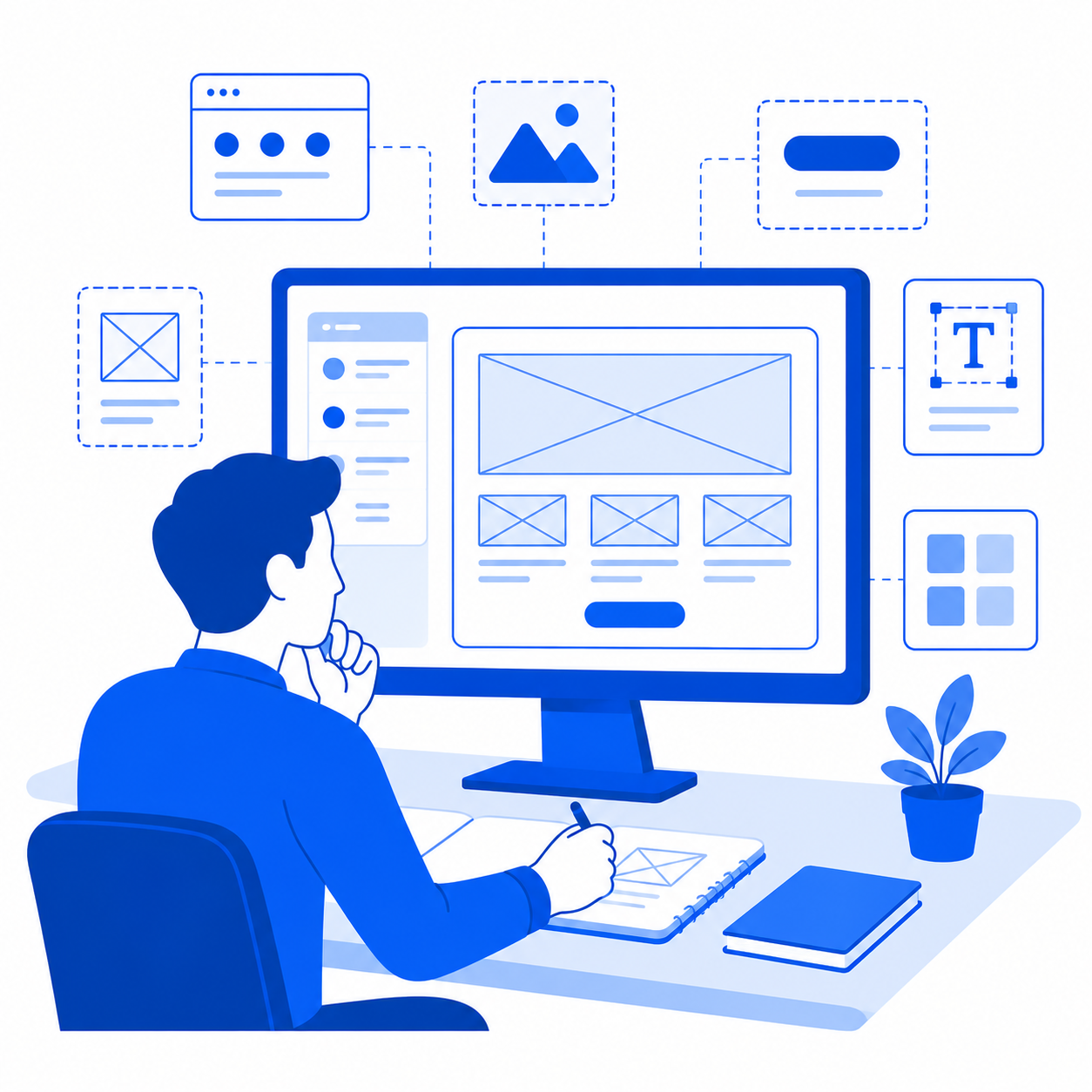
You don’t need design skills to create rough wireframes. Figma’s basic tools (rectangles, text boxes, and simple shapes) are enough to sketch a user flow or communicate a concept to a designer.
A PM wireframe is not meant to be pretty. It’s meant to answer: what information needs to be on this screen, and in what order? What are the key actions a user can take? How does this screen connect to the next?
Start with a blank frame (press F and drag a rectangle). Add rectangles to represent UI regions. Use text boxes to label what goes where. Draw arrows with the Pen tool to show navigation.
That’s all you need for a concept sketch. Hand it to a designer with a brief verbal explanation and they can take it from there.
Annotating Designs for User Research
When preparing designs for usability testing, PMs can use Figma’s comment and annotation features to mark areas of interest: questions to probe, hypotheses to test, or areas where user behavior is uncertain. Nielsen Norman Group’s research on UX collaboration patterns makes a similar point: the earlier a researcher and a PM agree on what they’re actually trying to learn, the less time gets wasted running tests that confirm what everyone already assumed.
This creates a shared document between PM and researcher that aligns on what the test is meant to learn, rather than running a generic usability test with no clear research objectives.
Part 4: Using Figma’s Inspect Panel
The Inspect panel (right side of Figma, “Inspect” tab) is a goldmine for PMs writing technical requirements. It shows:
- Exact dimensions and spacing of elements
- Font size, weight, and color values
- Colors in hex and RGB
- Export options for assets
When you’re writing a PRD or feature spec and need to reference a specific design decision precisely, the Inspect panel gives you the exact values. This reduces ambiguity when engineering implements the design.
Part 5: Figma Features PMs Should Know
Components and Design Systems
A component is a reusable design element (a button, a card, a navigation bar) that is defined once and used consistently across the product. If a designer uses components from a design system, changes to the component update everywhere it’s used.
As a PM, you don’t need to build components. But you should know whether your team has a design system. If a designer is building something from scratch rather than using existing components, that’s a scope and consistency question worth raising.
FigJam
FigJam is Figma’s collaborative whiteboard tool. Product managers often use FigJam for:
- User journey mapping
- Stakeholder workshops and brainstorms
- Sprint planning diagrams
- Flow diagrams and service blueprints
It’s simpler than Figma proper and doesn’t require design knowledge. If you’ve used Miro or Mural, FigJam will feel familiar.
Dev Mode
Figma’s Dev Mode is a specialized view for engineers that shows design specs in developer-friendly formats. As a PM, you don’t need to use Dev Mode, but knowing it exists helps you understand why designs in Figma are authoritative for engineering. The specs engineers implement come directly from the Figma file.
Where PMs Get Figma Wrong
Most of the common Figma mistakes PMs make aren’t about the tool being confusing. They’re about habits that feel efficient in the moment and cause real problems later.
The first is approving off a screenshot instead of the live file. Someone pastes a frame into Slack, you glance at it, you say “looks good.” Screenshots don’t show prototype behavior, they go stale the moment the designer iterates, and they strip out the comment thread where the actual decisions live. If you’re signing off on something, sign off in the file, not on an export of it.
The second is editing directly in a designer’s working file without asking. Viewer access covers nearly everything a PM needs, and nudging a frame to “just show what I meant” instead of leaving a comment is a common way to break a component instance and cost the designer twenty minutes untangling it. If you need to sketch something, do it on a new page or in FigJam, not inside their layout.
The third is treating comments as a status log instead of a design conversation. A comment that says “any update on this?” three days after the original note doesn’t move anything forward — it just adds noise. If something’s blocked, say what’s blocking it and tag whoever can unblock it, or take it to a synchronous conversation instead of stacking async pings.
The fourth is discovering a Dev Mode discrepancy during QA instead of before handoff. If engineering builds from Dev Mode specs and design changed after handoff without updating the file, the mismatch shows up as a bug report instead of a design conversation. A two-minute check of the file right before implementation starts catches this every time.
Figma in the PM Workflow: A Practical Example
Here’s how this played out on a real feature: a four-person team at an early-stage fintech app redesigning the account-linking flow after users kept abandoning it mid-setup.
Discovery: The PM sketched a rough three-screen wireframe in Figma showing what information was actually needed at each step, based on support tickets about people getting stuck. She shared it with the designer async with a one-line note on the goal, and the designer turned it into a low-fidelity prototype within a day.
Design review: The PM reviewed it in Prototype mode, not as static frames, and caught that the error state for a rejected bank connection didn’t exist at all: the prototype just looped back to a blank screen. That’s the kind of gap that only shows up by clicking through the flow.
Sign-off: Once the error state was added, the PM left a dated comment on the file confirming approval and linked the PRD section covering acceptance criteria, so there was one place engineering could check both design and intent.
Engineering handoff: Engineers worked from Dev Mode for exact spacing and copy. The PM stayed available for intent questions; the designer handled anything about the visual system.
QA: The PM compared the shipped flow against the Figma file screen by screen. The only discrepancy was a loading state that had been simplified for a technical constraint — a reasonable tradeoff that was noted and closed out, rather than a surprise to relitigate at launch.
Getting Started With Figma for Product Managers
Figma is free for individual use. You can sign up at figma.com and start viewing any file shared with you immediately.
For PMs who want to develop practical skills quickly, the best approach is to spend one hour exploring your designer’s current files rather than following a tutorial. Real files are messier and more instructive than sample projects.
Beyond Figma itself, product analytics tools and project management tools are the other key parts of the modern PM software stack.
Open Figma Before Your Next Design Review
Figma is not a designer-only tool. For product managers, it’s the most direct window into what the team is building, before it gets built. Learn to navigate files, use Prototype mode to experience flows, and leave specific, user-grounded comments in the live file instead of reacting to a screenshot.
The next design review on your calendar is a good place to start — open the actual file five minutes early and click through it in Prototype mode before anyone starts presenting.
References
- Figma. Resources for Product Managers. figma.com/resources.
- Rachitsky, Lenny. “How the best PMs work with designers.” Lenny’s Newsletter, lennysnewsletter.com.
- Product School. Figma for Product Managers. productschool.com.
- Nielsen Norman Group. UX Collaboration Between PMs and Designers. nngroup.com.